Physical Address
5206 Hwy 5 N Suite 100, Bryant, AR, United States, Arkansas
Physical Address
5206 Hwy 5 N Suite 100, Bryant, AR, United States, Arkansas

QuickBooks W-9 automation is one of the easiest ways businesses can save time and reduce compliance stress. Many companies rely on QuickBooks® Online (QBO) for accounting, but the platform does not automatically collect W-9 forms from vendors. As a result, teams often waste hours chasing paperwork, correcting errors, or scrambling during 1099 season.
With QuickBooks Online W-9 automation powered by GetW9, vendor W-9 collection becomes fast, secure, and seamless.
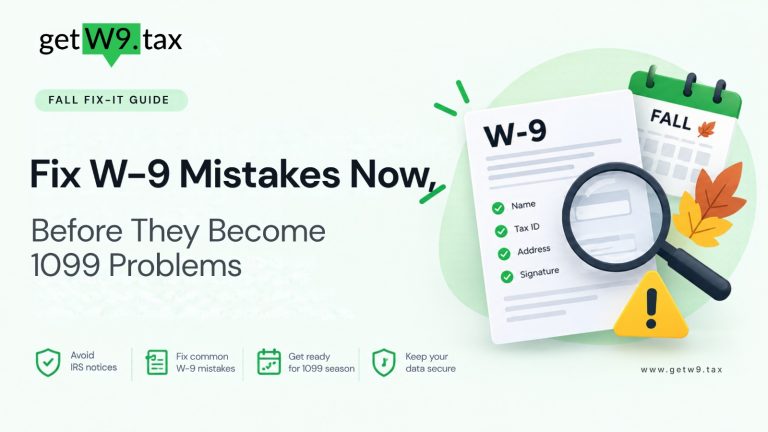
Manual W-9 collection can lead to serious problems: lost forms, outdated versions, incorrect TINs, and even IRS penalties. Automating this process with GetW9 ensures every form is current, complete, and securely stored.
Key benefits include:
Learn more about Common W-9 Mistakes to Avoid in 2025
When you add a vendor to QBO and include their email, GetW9 automatically sends a digital W-9 request. Vendors can complete, sign, and submit online—no printing required.
As soon as the form is submitted, QuickBooks updates the vendor profile with:
The W-9 is also stored securely in your GetW9 dashboard.ccount.
You can also create a W-9 request directly in GetW9. Once the vendor submits:
If duplicate vendor profiles appear in QBO, you can easily merge vendors in QuickBooks (Intuit official guide).
With QuickBooks W-9 automation, you can:
✔ Save time by automating W-9 requests..
✔ Stay compliant by always using the latest IRS W-9 form (Rev. March 2024).
✔ Reduce errors with verified contractor details.
✔ Protect data with AES 256 CBC encryption and SSL.
✔ Be ready for 1099 season with organized files.
See How GetW9 Works: Automation + Peace of Mind
Even with automation, you may face a few hiccups. Here’s how to solve them:
Q1. Can QuickBooks Online automatically collect W-9s?
Not natively. But with GetW9 integration, W-9 collection is fully automated and synced into QuickBooks.
Q2. How does GetW9 sync W-9s into QuickBooks Online?
When vendors complete their W-9, the details and PDF sync automatically into their QuickBooks profile.
Q3. What if a vendor email is already in use in QuickBooks?
Each vendor in QBO must have a unique email. Update duplicates before sending a new W-9 request.
Q4. Is vendor W-9 data stored securely with GetW9?
Yes. GetW9 encrypts data with AES 256 CBC, secures access with SSL, and stores every form in a centralized dashboard.
Conclusion
QuickBooks Online W-9 automation gives you peace of mind during tax season. Instead of chasing vendors and fixing errors, your team can focus on growth. With GetW9, every W-9 is current, complete, and stored securely ready for 1099 reporting.
👉 Stop chasing vendor forms in QuickBooks.
Start your free trial of GetW9 today and experience a smoother tax season.